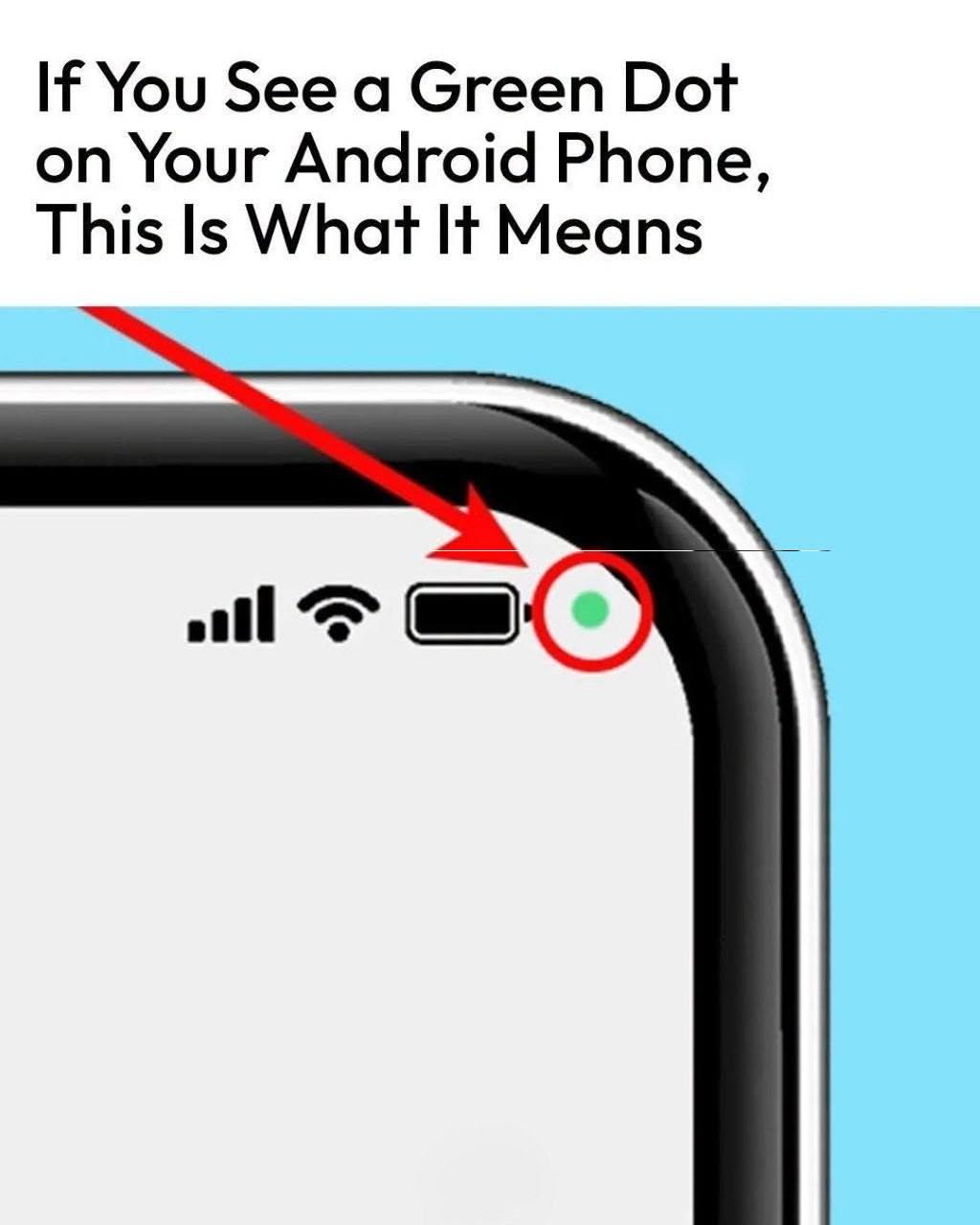
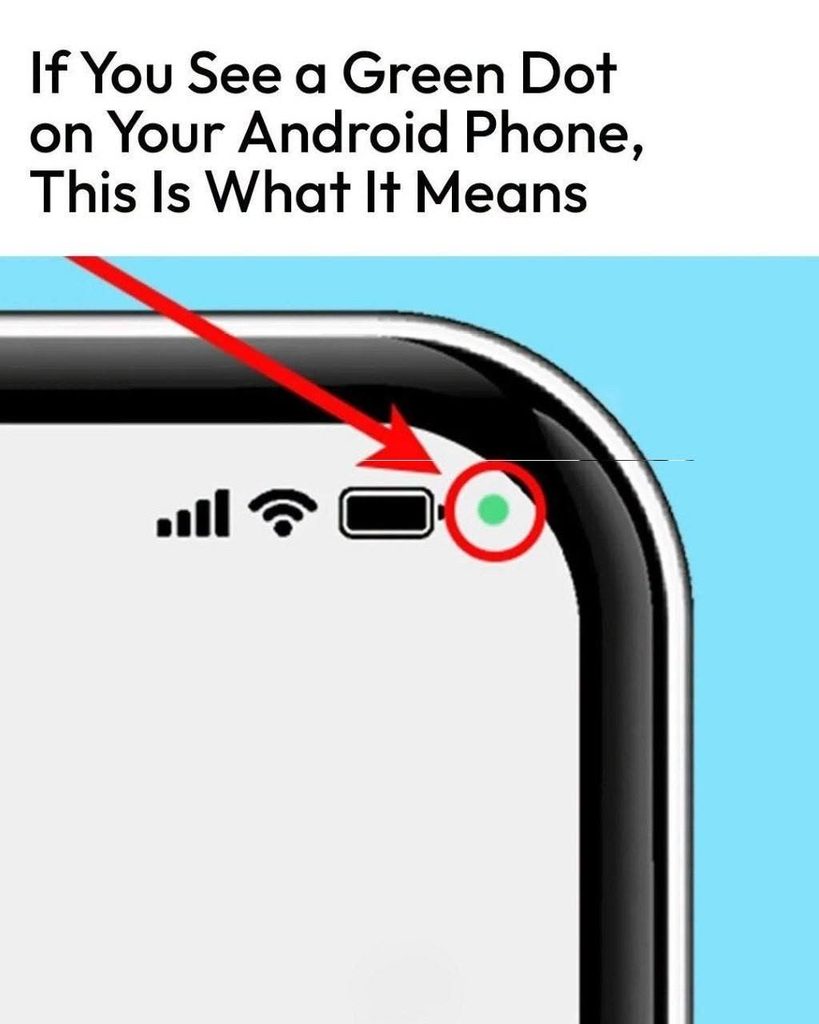
Have you ever noticed a small green dot in the upper-right corner of your Android screen and wondered whether someone is secretly using your phone?
Don’t panic. On modern Android phones, the green dot is actually a privacy and security indicator.
🟢 What Does the Green Dot Mean?
The green indicator appears when an app is actively using your phone’s:
- 📷 Camera
- 🎙️ Microphone
For example, you may see it when you’re making a video call, taking a photo, recording audio, using voice commands or using another feature that requires the camera or microphone.
🔍 How to Find Which App Is Using It
If the green dot appears and you’re not sure why:
1. Swipe down from the top of your screen.
2. Tap the green indicator.
Your phone can show you which app or service is currently accessing the camera or microphone.
3. Tap again to review its permissions.
This lets you decide whether the application should continue having access.
🔐 Can You Turn It Off?
The green dot itself is designed as a privacy feature, so you generally don’t want to simply hide it.
Instead, you can control which apps are allowed to use your camera and microphone.
Go to your phone’s privacy or permission settings and review the apps that have access.
You can remove camera or microphone permission from an app that doesn’t need it.
⚠️ When Should You Be Concerned?
Seeing the green dot doesn’t mean your phone has been hacked.
However, if it repeatedly appears when you aren’t using anything that should need the camera or microphone, it’s worth checking which app is responsible.
Pay particular attention to unfamiliar or suspicious applications.
📱 Why Is This Feature Important?
Before Android introduced these privacy indicators, it could be difficult for users to know when an application was accessing sensitive sensors.
The green indicator gives you a quick visual warning that your camera or microphone is currently being accessed.
🟢 The Bottom Line
The green dot on your Android phone is usually a privacy feature, not a warning that your phone is infected.
The next time you see it, don’t panic.
Swipe down → tap the green indicator → see which app is using your camera or microphone → review its permissions if necessary.
It’s actually one of Android’s most useful privacy features.